

Cloning Packages to Price Books & Currencies
Available In Core Suite 1.36+
Many organizations use Price Books and multi-currency in Salesforce to manage product availability and pricing across different regions and market segments. When a product is first created, it is configured within a single Price Book and currency. The cloning functionality within the Manage Configurations page enables users to replicate these package configurations across multiple Price Books and currencies, supporting consistent setup at scale. This allows teams to handle complex pricing scenarios efficiently without the need to rebuild or duplicate package Products.
Steps to Complete
- Access the Manage Configurations page.
- Navigate to the package product record
- Click on the “Manage Configurations” button.
- Select the Configuration to Clone.
- In the price book entries list, click the cog button on the applicable row.
- Select the “Clone” option from the menu.
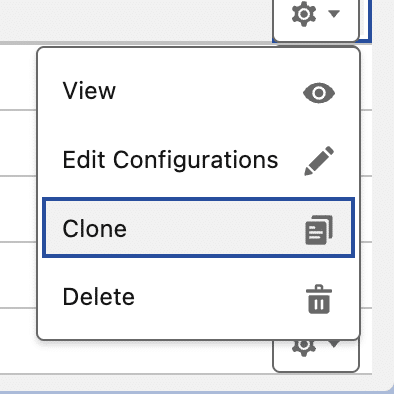
- Alternatively, you can select “Edit Configuration” from the menu, then click the “Clone” button on the configuration edit page.
- Select “Add to Price Books” from the “Clone Package” pop-up.
- The “Create New Product” process is outlined here.

- The “Create New Product” process is outlined here.
- Choose Price Books.
- From the list that appears, select the price books you want to clone the configuration into.
- You can select as many Price Books as you need.

- Select the currencies that you need.

- Review your selections, and select a pricing option for each.
- The page displays all combinations of the selected Price Books and currencies.
- If a selected combination includes the Price Book Entry currently being cloned, it will be automatically excluded from the list.
- Individual Price Book Entries can be removed by clicking the X on the corresponding row.
- Where a configuration already exists for a specific Price Book and currency combination, a warning icon is displayed to indicate this. If you continue, the existing configuration will be overwritten with the cloned version.

- For each Price Book Entry, select a pricing option. This defines how the Sales Prices will be set for the cloned configuration.
- Use List Price – Package and component prices will default to the list prices in the new Price Book.
- Apply Conversion Rate – Package and component prices will be calculated using the provided conversion rate. This will default to your org’s current exchange rate, but can be changed.

- Copy Exact Prices – Package and component prices will be copied exactly from the original package, ignoring any conversion rates.
- Once finished, click “Next”.
- If any Price Book Entry rows display a warning icon, you will be prompted to confirm whether you want to overwrite the existing configuration before proceeding.

- If any Price Book Entry rows display a warning icon, you will be prompted to confirm whether you want to overwrite the existing configuration before proceeding.
- Conflict Resolution (if applicable).
- If one or more package components do not exist in the selected Price Book and currency, the “Conflict Resolution” page will be displayed.
- Use the table on the left side to select the configuration to edit. The rows with a warning icon have a missing Price Book Entry.

- This page helps you determine how to handle components when a corresponding Price Book Entry is missing. The available options are:
- Create Price Book Entry – A new Price Book Entry will be created for the component Product in the selected Price Book and currency.
- Remove Product – The component Product will be removed from the configuration for that Price Book and currency.

- All conflicts must be resolved before the configuration can be saved. Once resolved, a tick will appear next to all Price Book Entries on the left-hand side, and the error message will no longer be displayed.

- Finalize and Save
- Click the “Save” button to generate the required Price Book Entries and configurations.


Outcomes
A Price Book Entry will be created for each combination of Price Book and currency selected, and will be displayed in the “Manage Configurations” page. Each Price Book Entry will have a corresponding configuration that mirrors the cloned setup. The pricing for each new configuration will be determined by the pricing option selected during the process.
Once a package has been cloned into a new Price Book and currency, it will become available in the Product Manager on Opportunities and Quotes that use the corresponding Price Book and currency combination.
Troubleshooting
1. The action has not been added to the Lightning Record Page or the Page Layout.
2. A visibility filter has been applied to the action on the Lightning Record Page.
Recommendation:
First, confirm whether your org is using the Lightning Record Page or the Page Layout to control which actions are displayed. Once identified, ensure the “Manage Configurations” action has been added to the appropriate configuration.
If you are using Lightning Record Pages, also review any visibility filters applied to the action. Note: we recommend applying a filter, so the button only appears for package Products.
Recommendation:
Verify whether the “Activate Multiple Currencies” setting is enabled on the Company Information page within Setup.
Be aware that enabling multi-currency is a permanent change and cannot be reversed. It should only be activated after a thorough understanding of the broader impact on your organization’s data, processes, and reporting.
Recommendation:
Configure a visibility filter on the Lightning Record Page so the button is only displayed for relevant records. Specifically, set the filter to show the action only when the “Package Type” field is Group or Bundle.
Recommendation:
If the package should also be available in the Standard Price Book for that currency, use the clone functionality to copy an existing configuration to the Standard Price Book. Where possible, create configurations for the Standard Price Book first, then create configurations in custom Price Books to maintain consistency and reduce rework.
Recommendation:
Update all Product Page Layouts and Lightning Record Pages to replace the “Edit Package Configuration” button with “Manage Configurations”, ensuring users have access to the latest and most flexible configuration capabilities.
Request Further Support
If you’re still having some trouble, we’re more than happy to help. Let us know what you’re struggling with using the form below, and we’ll be in touch as soon as possible.