

Managing Package Configurations
Available In Core Suite 1.36+
In many organisations, products and pricing can vary across regions, currencies, and customer segments. The Package Configuration Management functionality allows users to define and maintain how package products (Groups & Bundles) are structured and priced across different price books and currencies. Enabling teams to manage complex pricing scenarios without duplicating package product.
Steps to Complete
- Navigate to the Package Product record.
- Select the “Manage Configurations” button.
- This opens the “Manage Configurations” page, where all available Price Books and currencies for the package are displayed.
- You can refine the results using the search bar at the top of the page, or sort the table by selecting any column header.

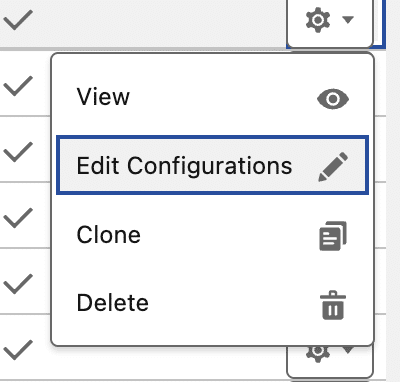
- On a Price Book Entry, select the Cog button.
- This opens a menu of actions for the selected Price Book Entry.

- View – Opens the Price Book Entry record for review.
- Edit Configuration – Allows you to update the package configuration for the selected Price Book and currency.
- Clone – Creates a copy of the existing configuration, enabling you to replicate it to a different price book and currency or apply it to a new product.
- Delete – Removes the Price Book Entry along with its associated package configuration.
- This opens a menu of actions for the selected Price Book Entry.
- Once finished, click “Save”.
- Changes on this page are only committed when you select either “Save” or “Save & Finish”.
- To discard any updates, click “Cancel”. You will then be returned to the package Product.

Outcomes
Any changes made via the “Manage Configurations” page are automatically reflected in the “Product Manager” on Opportunities and Quotes.
Troubleshooting
Why can’t I see the Manage Configuration button on a Product?
There are two common reasons why the “Manage Configurations” button may not be visible on a Product record:
1. The action has not been added to the Lightning Record Page or the Page Layout.
2. A visibility filter has been applied to the action on the Lightning Record Page.
Recommendation:
First, confirm whether your org is using the Lightning Record Page or the Page Layout to control which actions are displayed. Once identified, ensure the “Manage Configurations” action has been added to the appropriate configuration.
If you are using Lightning Record Pages, also review any visibility filters applied to the action. Note we recommend applying filter, so the button only appears for package Products.
1. The action has not been added to the Lightning Record Page or the Page Layout.
2. A visibility filter has been applied to the action on the Lightning Record Page.
Recommendation:
First, confirm whether your org is using the Lightning Record Page or the Page Layout to control which actions are displayed. Once identified, ensure the “Manage Configurations” action has been added to the appropriate configuration.
If you are using Lightning Record Pages, also review any visibility filters applied to the action. Note we recommend applying filter, so the button only appears for package Products.
Why am I only seeing one currency?
Salesforce orgs can be configured to operate with either single or multiple currencies. If you only see one currency available on the “Manage Configurations” page, it is likely that multi-currency has not been enabled in your environment.
Recommendation:
Verify whether the “Activate Multiple Currencies” setting is enabled on the Company Information page within Setup.
Be aware that enabling multi-currency is a permanent change and cannot be reversed. It should only be activated after fully understanding the broader impact on your organisation’s data, processes, and reporting.
Recommendation:
Verify whether the “Activate Multiple Currencies” setting is enabled on the Company Information page within Setup.
Be aware that enabling multi-currency is a permanent change and cannot be reversed. It should only be activated after fully understanding the broader impact on your organisation’s data, processes, and reporting.
Why can I not see all Price Books and currencies in my environment?
The “Manage Configurations” page displays all Price Book Entry records associated with the package Product from which it was opened. If a Product does not have a Price Book Entry for a specific Price Book or currency, it will not appear in the list.
Recommendation:
To create a Price Book Entry and configuration for a new currency or Price Book, use the clone functionality copy the existing configuration.
Recommendation:
To create a Price Book Entry and configuration for a new currency or Price Book, use the clone functionality copy the existing configuration.
When I click the “Manage Configurations” button I see an “Invalid Product” warning message.
The “Manage Configurations” button is only supported for package Products created using the “New Package” action in the Products tab. Attempting to access the page from a non-package Product will result in an “Invalid Product” warning.
Recommendation:
Configure a visibility filter on the Lightning Record Page so the button is only displayed for relevant records. Specifically, set the filter to show the action only when the “Package Type” field is Group or Bundle.
Recommendation:
Configure a visibility filter on the Lightning Record Page so the button is only displayed for relevant records. Specifically, set the filter to show the action only when the “Package Type” field is Group or Bundle.
Is the “Edit Package Configuration” button the same as the “Manage Configurations” button?
From version 1.36+ of the GSP Core Suite, the “Manage Configurations” button replaces the “Edit Package Configuration” button. This enhanced functionality allows users to create and manage configurations across multiple Price Books and currencies, whereas the legacy “Edit Package Configuration” button only supports a single Price Book and currency per package Product.
Recommendation:
Update all Product Page Layouts and Lightning Record Pages to replace the “Edit Package Configuration” button with “Manage Configurations”, ensuring users have access to the latest and more flexible configuration capabilities.
Recommendation:
Update all Product Page Layouts and Lightning Record Pages to replace the “Edit Package Configuration” button with “Manage Configurations”, ensuring users have access to the latest and more flexible configuration capabilities.
Request Further Support
If you’re still having some trouble, we’re more than happy to help. Let us know what you’re struggling with using the form below, and we’ll be in touch as soon as possible.
Was this article helpful?