

How to Edit Targets
Available In All Versions of GSP Target Tracker
The GSP Target Tracker allows users to quickly edit existing Sales, Team and/or Product targets for multiple months, quarters, years, or a custom time period, if required.
Regardless of which type of target you need to edit, the entry point for all of them is the “Manage Targets” tab (included in the GSP Target Tracker). The “Manage Targets” tab is a user-friendly, native way to update your target records in bulk, without needing multiple tabs, spreadsheets, or other tedious tasks.
Whilst there are several ways to edit your existing Product Target records, we strongly recommend using the “Manage Targets” tab. The steps to complete assume the use of the “Manage Targets” tab. If you have any issues with the “Manage Targets” tab, please get in touch, and we would be more than happy to help.
Steps to Complete
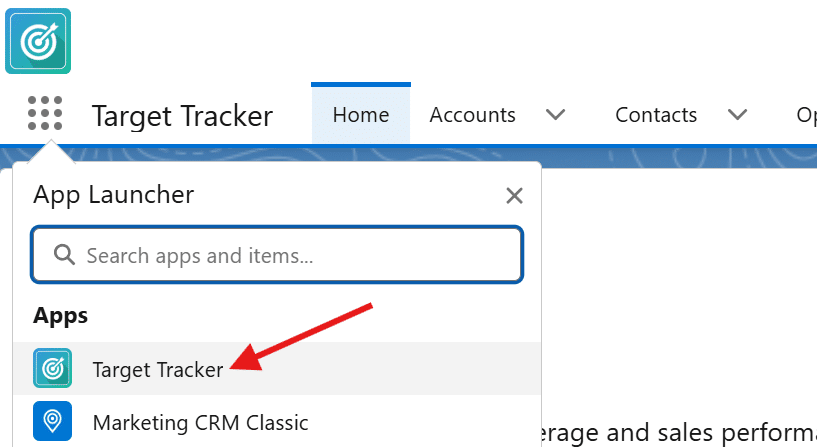
- Open the App Launcher within Salesforce (9-dot matrix in the top-left corner of the screen), and select the GSP Target Tracker app.
- Click the “Manage Targets” Tab.

- Determine the targets that you need to edit:
- For Sales Targets, click the “Sales Targets” subtab.
- For Team Targets, click the “Team Targets” subtab.
- For Product Targets, click the “Product Targets” subtab.
- Once you have selected your subtab, you will notice that the page automatically selects any users/teams included in your targeting.
- Select the “Fiscal Year” you would like to edit.
- Your Salesforce configuration determines the fiscal year. If you believe your fiscal year is incorrect, contact an administrator to make this change.
- Depending on the type of edit, please do the following:
- If you need to bulk update several users/teams with the same edit at once, continue from step 7.
- If you need to make specific edits to individual users and teams, skip to step 11.
- If you need to bulk update several users/teams with the same edit at once, scroll down the page and select the users/teams using the checkbox to the left of the user/team name.
- Once you have selected all users/teams, type your target value into either the “Monthly Target” or “Annual Total” fields within the Mass Edit section.
- “Monthly Target” may read differently, depending on your target period configuration.
- Editing the “Monthly Target” field will automatically calculate the “Annual Total”.
- Editing the “Annual Total” field will automatically calculate the “Monthly Target”.
- Click “Apply to Selected”.
- Once happy with the target values, click “Save”.
- If you need to make specific edits to individual users or teams, scroll down the page to find the users or teams you want to edit.
- Expand the required user/team and type your target value into either the “Monthly Target” or “Annual Total” fields within the Mass Edit section.
- “Monthly Target” may read differently, depending on your target period configuration.
- Editing the “Monthly Target” field will automatically calculate the “Annual Total”.
- Editing the “Annual Total” field will automatically calculate the “Monthly Target”.


- Once happy with the target update, click “Save”.
- Repeat steps 11-14 until all your target edits are complete.




Outcomes
What is the outcome? What should happen once these steps have been completed? Any other information that should be shared?Once you have edited your target records and clicked “Save”, the GSP Target Tracker will update your existing target records immediately. Additionally, the system will update all target-related calculations based on the latest target amount. To validate this:
- Navigate to one of the updated target records within the Sales Target, Team Target or Product Target tab, and review the Target Amount and KPIs.
Troubleshooting
Recommendation:
When editing a specific target type, add your additional users/teams as needed and edit/populate all targets as you normally would. Upon “Save”, the existing target changes will be processed, and the system will create the new targets.
Recommendation:
In this instance, we highly recommend creating your targets in batches (e.g., 2 teams, then the next 2, and so on).
Recommendation:
Use the mass-edit functionality to update the users/teams with consistent target values. For all other users/teams, update them individually.
Request Further Support
If you’re still having some trouble, we’re more than happy to help. Let us know what you’re struggling with using the form below, and we’ll be in touch as soon as possible.