

Creating Salesperson Product Targets
Available In All Versions of GSP Target Tracker
The GSP Target Tracker allows users to create targets for products over months, quarters, years, or a custom time period, if required. Additionally, Product Targets can be salesperson-specific, allowing you to track product performance against target on a per-salesperson basis.
If you are interested in creating catch-all Product Targets (which track product performance against targets regardless of the Salesperson responsible for the deal), refer to the “Creating Catch-All Product Targets” article in the Admin & Configuration section.
Unlike Sales and Team Targets, Product Targets relate to Opportunity Products rather than Opportunities. That said, they still rely on Opportunity information to link to the correct Product Target.
Opportunity Products link to salesperson Product Targets based on 3 matching conditions:
- Does the Product’s Product Category match the Product Target’s Product Category?
- Does the Opportunity Close Date fall within the Product Target Period?
- Does the Opportunity Owner match the Product Target Owner?
An Opportunity Product (with a Product Category of “Generators”) linked to a Jan 2026 Opportunity owned by Dave Apthorp would link to Dave Apthorp’s Jan 2026 Product Target for “Generators”. If you need to amend this logic, please refer to the “Using a Custom Date Field to Link Opportunities or Opportunity Products to Targets” article.
The “Product Category” is defined on the Product record, not the Opportunity Product, and can be customised to meet your needs. The concept of a “Product Category” is extremely flexible within the GSP Target Tracker.
Whilst there are several ways to create your Product Target records, we strongly recommend using the “Manage Targets” tab (included in the GSP Target Tracker). The steps to complete assume the use of the “Manage Targets” tab. If you have any issues with the “Manage Targets” tab, please get in touch, and we would be more than happy to help.
Steps to Complete
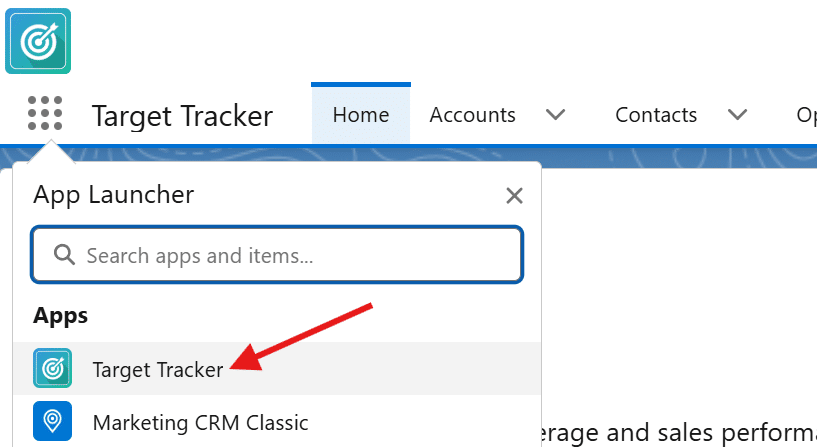
- Open the App Launcher within Salesforce (9-dot matrix in the top-left corner of the screen), and select the GSP Target Tracker app.

- Click the “Manage Targets” Tab.

- Confirm you are in the “Product Targets” subtab within the “Manage Targets” page.

- Turn off the “Catch-All” option.
- Users can select salespeople whilst the “Catch-All” option is enabled to create salesperson Product Targets alongside catch-all Product Targets. Please refer to the “Creating Catch-All Product Targets” article for further information. See Important Considerations and troubleshooting for additional guidance.

- Users can select salespeople whilst the “Catch-All” option is enabled to create salesperson Product Targets alongside catch-all Product Targets. Please refer to the “Creating Catch-All Product Targets” article for further information. See Important Considerations and troubleshooting for additional guidance.
- Once you have deactivated “Catch-All” and selected the users, click “Next” or the “Set Product Targets (#)” subtab.
- Select the “Fiscal Year” you would like to view.
- Your Salesforce configuration determines the fiscal year. If you believe your fiscal year is incorrect, contact an administrator to make this change.
- Depending on your target structure, please do the following:
- If you have a consistent target to apply to all users within a product category, continue from step 8.
- If you have varying target amounts for users within a product category, continue from step 12.
- If you have a consistent target to apply to all users within a product category, click the “Select All” quick link below the Mass Edit section.
- You will notice that the checkbox next to all users has been checked further down the page.
- You will notice that the checkbox next to all users has been checked further down the page.
- Type your target value into either the “Monthly Target” or “Annual Total” fields within the Mass Edit section.
- “Monthly Target” may read differently, depending on your target period configuration.Editing the “Monthly Target” field will automatically calculate the “Annual Total”.
- Editing the “Annual Total” field will automatically calculate the “Monthly Target”.
- Click “Apply to Selected”.
- Once happy with the target values, click “Save”.
- Select the “Product Category” picklist in the top-right corner of the screen, select the next Product Category, and repeat steps 8-12 until all product categories are populated.

- If you have different target amounts for all users in a product category, scroll down the page and expand the first user by clicking the arrow to the left of the user’s full name.
- Populate the target amounts for each targetable period for this specific user.
- Editing the individual targets will automatically calculate the “Monthly Target”.
- Editing the individual targets will automatically calculate the “Annual Total”.

- Once you are happy with the target values for this user, continue to the next user.
- Repeat this process for all users until you have populated the target amounts for every required user.
- Once happy with the target values, click “Save”.
- Select the “Product Category” picklist in the top-right corner of the screen, select the next Product Category, and repeat steps 13-18 until all product categories are populated.



Outcomes
Once you have populated your Product Targets for all product categories and clicked “Save”, the GSP Target Tracker will immediately create your Product Targets and link the appropriate Opportunities. To validate this, either:
- Navigate to any Opportunity Product that you believe should be linked to a target and review the fields included in the “Target Information” section.
- Navigate to one of the new Product Target records within the Product Targets tab, and review the KPIs and Opportunity related list.
Troubleshooting
Recommendation:
In this instance, we highly recommend creating your targets in batches (e.g., 2 teams, then the next 2, and so on).
Recommendation:
For the impacted Opportunity Product, confirm the system has not linked the record to a salesperson Product Target in the same category and target period. If not, confirm that the Opportunity Product matching criteria align with your catch-all Product Target. If you’re still having issues, don’t hesitate to get in touch.
Recommendation:
Continue creating your Product Targets and add a temporary “0” value to any targets you’re unsure of.
Recommendation:
Use the mass-edit functionality to update the users with consistent target values. For all other users, update them individually.
Recommendation:
Continue as normal; this is expected functionality.
Recommendation:
Open the “Manage Targets” tab, navigate to any user and target period, and confirm whether the target period label is clickable.
Request Further Support
If you’re still having some trouble, we’re more than happy to help. Let us know what you’re struggling with using the form below, and we’ll be in touch as soon as possible.