

Configuring Product Category for Product Targets
Available In All Versions of GSP Target Tracker
When using Product Targets in the GSP Target Tracker, the “Product Category” is the value that groups individual Products into your targetable segments. You can customise these values to meet your specific business needs, for example, your categories might be:
- Individual Products (Office Chair, Standing Desk, Desk Lamp, etc).
- Industry Use (Healthcare Solutions, Education, Corporate Office, etc).
- Region/Market Availability (Europe, North America, Asia, etc).
Once you have confirmed your “Product Category” structure, you will need to set up the “Product Category” matching criteria between the Opportunity Product and Product Target to meet your business requirements.
To set up your “Product Category” values, an admin needs to complete additional configuration.
Steps to Complete
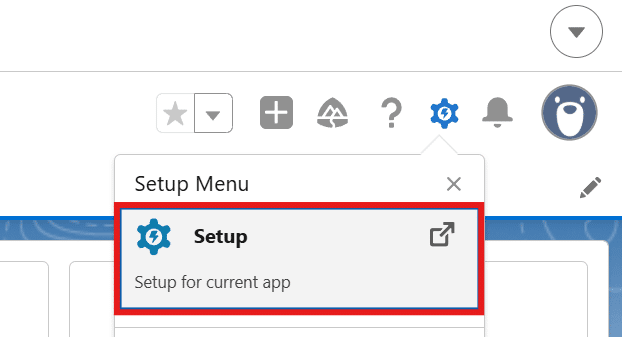
- Navigate to the “Setup” menu.

- Select the “Object Manager”.
- Find and click the “Product” object in the Object Manager.
- You can scroll the list or use the “Quick Find” search bar in the top-right corner.
- Navigate to “Fields & Relationships” in the Product object.

- Find and click the “Product Category” field.
- Scroll down to the “Values” section.
- By default, you will see two values: “Category A” and “Category B”.

- By default, you will see two values: “Category A” and “Category B”.
- Click the “View Product Category Value Set” button to the right of the “Values” heading.
- Click “Edit” next to the “Category A” value and replace “Category A” with your first category.
- You must update the label and the API name with your updated category value.
- Once updated, click “Save” to return to the value set.

- Click “Edit” next to the “Category B” and repeat the process with your second category.
- If you require more than two product category values, click “New” to the right of the “Values” heading.
- You can add multiple values at once by separating each value with a line break.
- Update the “Add the new picklist values to all Record Types that use this Global Value Set” checkbox to true.
- When you have added your values, click “Save”.
- As this is a value set, the change is automatically applied to both the Product and the Product Target.
- Optionally, you can click the “Reorder” button to the right of the “Values” heading to reorder your target type values.
- Navigate to “Page Layouts” in the Product object.

- Find and click the page layout you are actively using on the Product.
- Add the following to the selected page layout:
- Add the “Product Category” field.
- Once you are happy with the positioning, click “Save”.
- Repeat steps 14-16 for any additional page layouts that are currently in use.
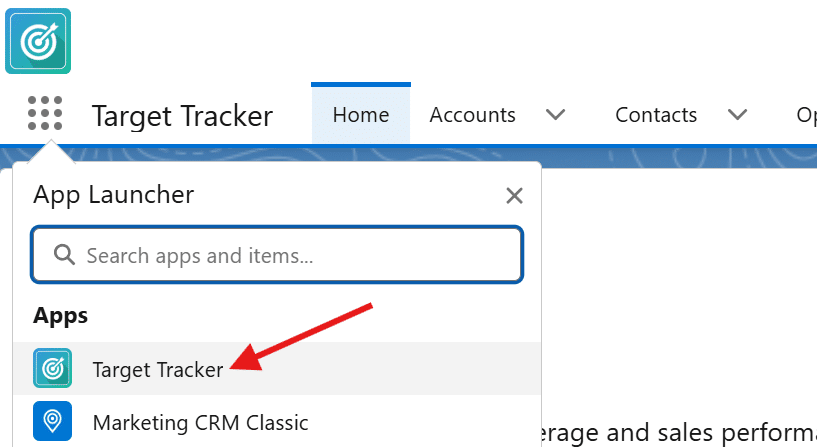
- Open the App Launcher within Salesforce (9-dot matrix in the top-left corner of the screen), and search for “Products”.

- Open a list view that shows all Products in the system.
- Click a Product and confirm you can view the “Product Category” field.
- If you can see the field, populate the value for that specific Product.
- If you cannot see the field, return to the page layout and add the field.
- Repeat this process for every Product you would like to include in a Product Category for Product Targeting.


Outcomes
After updating the “Product Category” value set, users can create product targets for specific product categories using the “Manage Targets” tab. When viewing the “Product Targets” subtab within the “Manage Targets” tab, you can select the product category for which you would like to create/update targets using the dropdown in the top-right corner of the screen.
Once created, the system will link Opportunity Products that match the 2 matching conditions to the associated product target as normal.
Troubleshooting
Recommendation:
Delete and recreate your existing Product Targets to ensure that all matching Opportunity Products are linked to Product Targets when you create them.
Recommendation:
You can change your product categories as required. If you are removing a category entirely, we recommend “Deactivating” the value rather than deleting it to retain it for historic targets.
Recommendation:
Suggest steps to check, a fix, or a workaround.
Request Further Support
If you’re still having some trouble, we’re more than happy to help. Let us know what you’re struggling with using the form below, and we’ll be in touch as soon as possible.