

The Essential Guide to Salesforce Product Price Books
Understand the power of Product Price Books and get your pricing right, every time.
Last updated February 19, 2026



Download the 12 Must-Have Charts for Your Salesforce Dashboard eBook today!
Price books and price book entries are essential to efficient sales operations, because they let you create a customized collection of products/services with different pricing for specific target segments.
So, do you use price books in Salesforce? Or are you still questioning why you need price books, how they work, how many price books you need, and what happens when you change or update price book entries?
In this detailed guide, we take you on a step-by-step tour of everything you need to know to set up, maintain, and use this vital Salesforce feature.
The Essential Guide to Price Books in Salesforce
What is a Price Book?
A price book is like a catalog and price list for the products/services your company sells. In companies where there is only one price book, every salesperson can sell every product at the same price to every customer. But in businesses with multiple price books, each is tailored to a specific customer segment, sales channel, region, or currency. Each price book may feature different products/services – or eliminate certain SKUs completely. And the same products/services can be priced differently, or sold in different currencies, across price books.
Needless to say, when multiple price books are in play, you don’t want to present the wrong catalog to a customer or use the wrong price book on an opportunity. You’ll see how to prevent that shortly.
What is a Price Book Entry?
When you enter a price for a product in the standard or custom price book, you create a price book entry. Each product can be linked to many price books, but in each case, the price of the product could be different, because it’s defined by a price book entry.
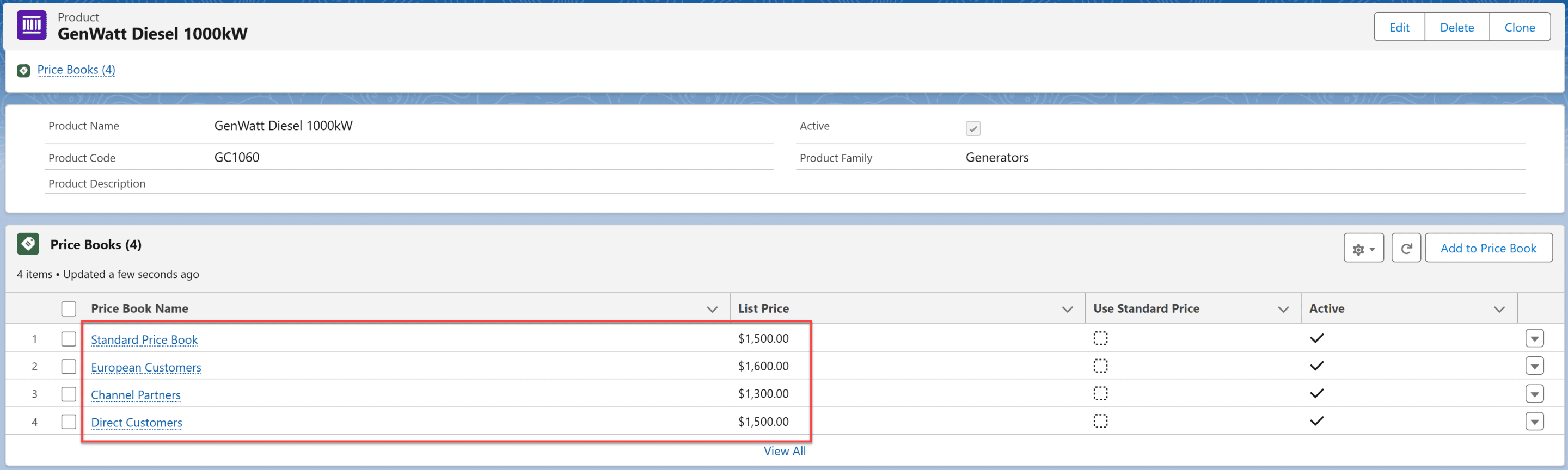
In other words, one price book is associated with many products. And for each product in the price book, there’s a price book entry.
What's the difference between a Standard Price Book and a Custom Price Book?
Standard Price Book
The Standard Price Book is the complete—or master—list of all the products/services your company sells.
- Each product/service has a standard baseline price your company charges per unit.
- It’s a ‘one size fits all’ approach, which works well for some companies with simple offerings.
Custom Price Books
Custom price books let you tailor the products and prices available to salespeople when they add products to an opportunity or quote.
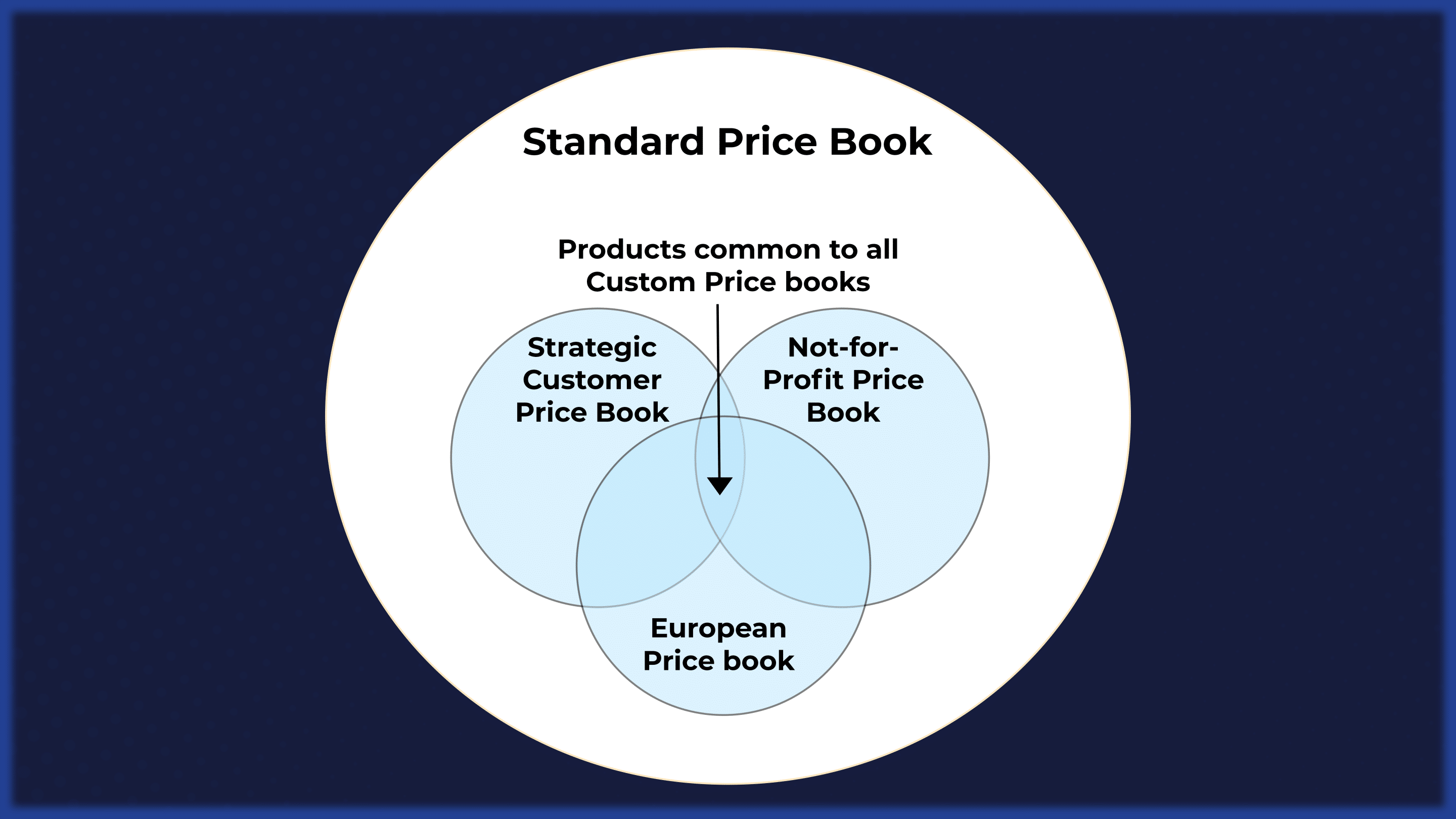
- Each custom price book contains all, or a subset, of products in the standard price book.
- Each product in a custom price book either uses the standard price, or the price you assigned to that specific price book.
For example, imagine you have a product that, for commercial or legal reasons, is available to channel partners but not direct customers. That means the standard and channel partner price books include the item, but the direct customer price book does not.
Similarly, you might have a product price of $1,000 in the standard price book. However, in the channel partner price book, it’s listed at $900. Likewise, in the Acme customer-specific price book, the item is $950.
Why do I need Price Books in Salesforce?
Price books allow you to implement advanced pricing strategies in Salesforce, by helping salespeople select the correct opportunity products at the appropriate price. If you use opportunity products in Salesforce, you need at least the Standard Price Book. However, many companies choose to create multiple price books in Salesforce, because it better aligns to their sales operations.
For example, if your business is based in North America, you might have separate price books for standard U.S. and Canadian customers, as well as for strategic customers, not-for-profits, and OEMs. You might also maintain a separate price book for European and UK customers. And potentially customer-specific price books that tailor products, services, and prices to individual clients.
For instance, Book4Time sells leisure-related software and supporting hardware to hotel chains worldwide. The company maintains a range of price books tailored by region. Still, it has also negotiated customer-specific product bundles and packages with major hotel chains, such as Marriott, Hilton, and Hyatt. As a result, Book4Time has created price books in Salesforce specific to each chain. When a salesperson adds products to a Marriott-related opportunity, they select from the Marriott price book, which contains specific products and a custom price list.
Pro Tip!
Go a step further and combine price books with GSP Volume Pricing to implement quantity-based discounts in Salesforce.
How do Price Books help Salespeople?
- Add the right products to opportunities/quotes at the correct prices—especially when pricing is tailored by region, channel, customer segment, or other criteria.
- No need to look up products and prices outside Salesforce, because relevant products and pricing are automatically presented to the salesperson.
- Not bound by the prices listed in the price book – salespeople can modify the price based on deal dynamics (though this can be controlled through approval processes).
Additionally, you can combine price books with volume pricing in Salesforce (without CPQ) using GSP Volume Pricing:
How to Ensure Sales Reps Use the Correct Price Book?
Naturally, you want to make sure salespeople associate the correct price book with each opportunity. Automating this process minimizes human error and ensures customers receive the correct pricing.
There are two ways to assign price books to opportunities automatically in Salesforce:
- GSP Auto Price Book Selector: this low-cost, straightforward app makes it easy to assign the correct price book every time.
- Build a flow: alternatively, your system administrator can create a flow that assigns the correct price book based on criteria on the Account.
How GSP Auto Price Book Selector works:
- The app installs a custom picklist field on the Account called Default Price Book.
- You customize the picklist values to match the names of your price books, then set the relevant value for each account.
- From that point forward, the appropriate price book is automatically assigned whenever you create an opportunity.
How to Control Access to Price Books?
Not every salesperson needs access to every price book in Salesforce. To control access:
- Set the Organization-Wide Sharing setting for Price Books to View Only or No Access.
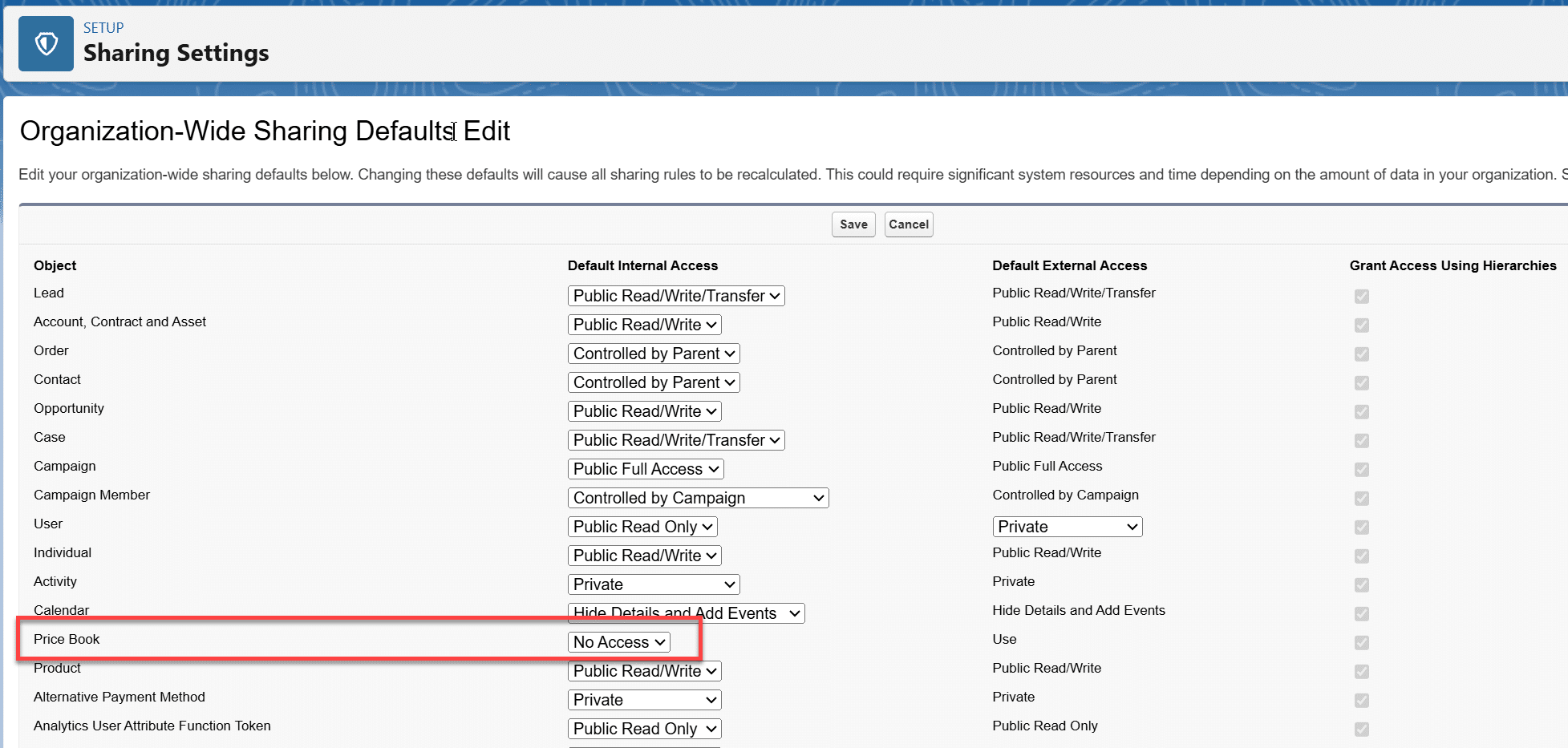
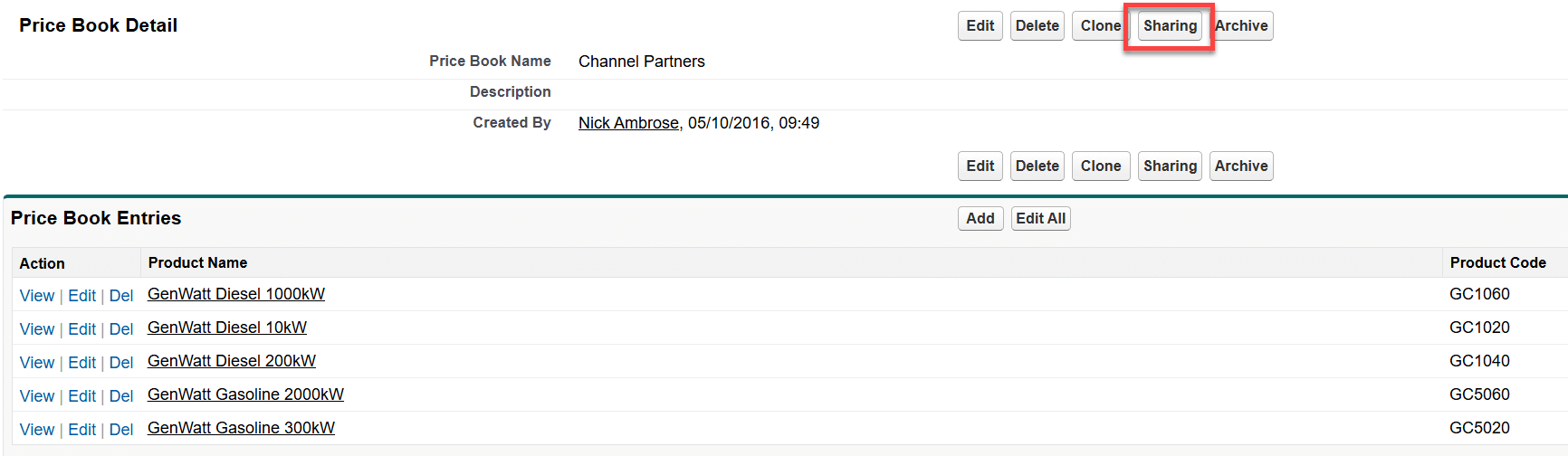
2. Switch to Classic interface (yes, you read that correctly) and for each price book, use the Share button to grant access based on Role, Public Groups, or specific Users.
How do I update Price Books in Salesforce?
You can modify prices in both the Standard Price Book and any Custom Price Books in 2 ways:
- Manually: update the price directly through the Salesforce user interface (you’ll need the relevant administrator permissions).
- In bulk: use the Apex Data Loader to export your price book entries into a spreadsheet. Make your changes, then upload the updated price book entries back into Salesforce using the Data Loader.
Pro Tip!
If you have more than a dozen changes to make, the bulk approach is usually faster and easier. And remember: you need to update price book entries, not the price books themselves.
What Happens to Existing Opportunity Products When Updating Price Books?
Nothing. Existing opportunity products and quote line items remain unchanged. In other words, if you change the price of an item in a price book, it doesn’t affect any pipeline or closed-won opportunities.
Similarly, if you make a product inactive in a price book, it will no longer be available for selection in the future. However, any existing opportunities or quoted products remain unchanged and retain the price the salesperson initially selected.
How Price Books and Multi-Currency Work Together?
If you sell across different countries, you may have set up multi-currency in Salesforce.
When you do, you have two options for handling price books:
- Enter prices in multiple currencies within the same price book: create all prices in your standard currency (such as US dollars) and then enter additional prices in the other currencies you’ve set up.
- Create currency-specific price books: create a custom price book for each currency, and each price book contains prices only in that currency (for example, British Pounds).
Many businesses using multi-currency in Salesforce choose the second option, because it’s a cleaner approach, which makes it easier to keep price books clearly delineated.
However, in either case, alternative currency values are not automatically tied to current exchange rates. In other words, if a product is priced at $1,000 in the US price book, and the GBP equivalent is £800, you still have the flexibility to set it at £900 if that’s the market price in the UK.
Make Price Books Work For Your Business
If you have any questions about how to use price books more effectively in your business, why not get in touch? Our team is always here and happy to help.
Price Books in Salesforce: FAQs
No. An opportunity can only be linked to a single price book, which means you cannot add products from multiple price books to the same opportunity or quote. This restriction prevents salespeople from adding incorrect products or prices to opportunities.