

Filtering Opportunity Products & Product Schedules
Available In Product Schedules 2.181+
In many cases, users want to analyse specific Products and/or Product Schedules within a single Opportunity without the tedious task of creating custom reports or list views. Our customisable filtering functionality allows end users to define personalised data views and quickly see the information they’re interested in, without requiring admin support.
Steps to Complete
- Navigate to an existing Opportunity in the system.
- Click the “Manage Schedules” button on the Opportunity.
- If you can’t see the “Manage Schedules” button, please ensure you have added the custom button to the Lightning Page.

- If you can’t see the “Manage Schedules” button, please ensure you have added the custom button to the Lightning Page.
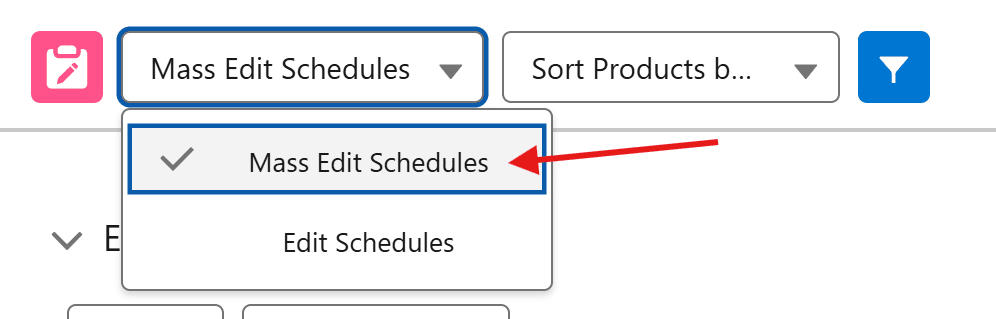
- Confirm that you are in the “Mass Edit Schedules” tab.
- Our “Manage Schedules” component has two areas, “Mass Edit Schedules” and “Edit Schedules”.
- This functionality is exclusively available in the “Mass Edit Schedules” tab.

- Click the blue filter icon in the “Manage Schedules” component header.
- When clicked, the filter pop-up menu will open.

- When clicked, the filter pop-up menu will open.
- Modify your filter criteria in the filter pop-up.
- Click “Apply” once you are happy with your criteria.


Outcomes
After your filter criteria are applied, you will only see Opportunity Products/Product Schedules that meet your parameters. Additionally, you can reopen the filter pop-up to further narrow your filtering criteria or to remove your filter criteria altogether.
Troubleshooting
Recommendation:
Review our Product Schedules Quick Start Guide for a step-by-step walkthrough on adding the required components. If you don’t feel confident making these changes, or don’t have an admin that can make them on your behalf, get in touch.
Recommendation:
Review our Product Schedules Quick Start Guide for a step-by-step walkthrough on adding the required components. If you don’t feel confident making these changes, or don’t have an admin that can make them on your behalf, get in touch.
Request Further Support
If you’re still having some trouble, we’re more than happy to help. Let us know what you’re struggling with using the form below, and we’ll be in touch as soon as possible.